
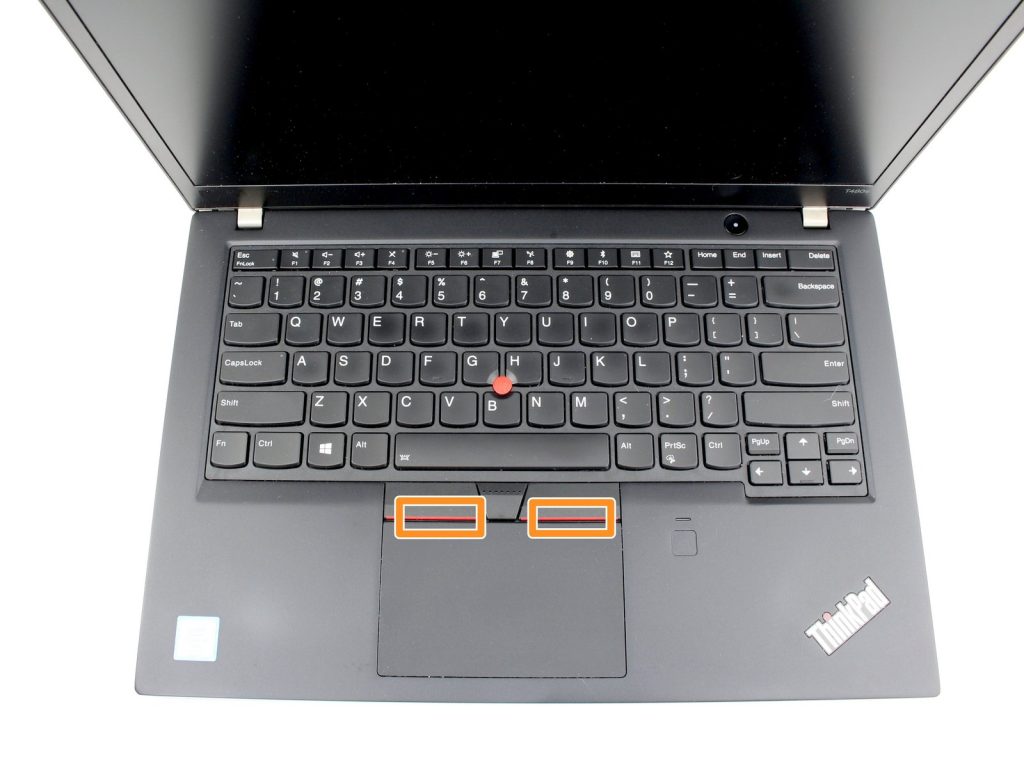
When You Should Try Repairing Your Keyboard
A computer keyboard that types the wrong characters, misses keystrokes, or stops responding completely is often fixable with simple steps at home. Basic cleaning, checking connections, and adjusting software settings can solve many issues caused by dust, spills, or accidental configuration changes without replacing the whole keyboard.
If your laptop or desktop keyboard has obvious liquid damage, many dead keys in one area, or visible cracks or dents, the problem is likely hardware. In those cases, careful diagnosis or professional repair is safer than trial and error, especially when the keyboard is built into the laptop chassis.
Common Computer And Laptop Keyboard Problems

Typical keyboard problems include sticking keys, keys that do nothing, keys that repeat on their own, or an entire keyboard that suddenly stops working. Laptop users also see issues after small spills, drops, or years of daily use where certain rows, function keys, or the space bar begin to fail.
Some problems are caused by software, such as the wrong language layout, special accessibility features turned on by mistake, or outdated drivers. Others come from hardware faults like worn key switches, damaged membranes, broken ribbon cables, or corrosion from drinks and water.
Quick Checks Before You Open Your Keyboard
Start by restarting the computer and testing the keyboard in a simple text editor to see which keys fail. If you can, test during startup in the BIOS or recovery menu to help confirm whether the problem is hardware or software. If the same keys fail even there, the keyboard or its cable is usually at fault rather than the operating system.
For external desktop keyboards, unplug and reconnect the USB or wireless receiver, try another USB port, and if possible test the keyboard on a different computer. For wireless models, replace the batteries, make sure the power switch is on, and check that the receiver is firmly seated. These quick steps often resolve simple connection and power issues.
Cleaning And Fixing Sticky Or Unresponsive Keys
Turn off the computer and gently turn the keyboard upside down to shake out crumbs and loose dust. Use short bursts of compressed air between the keys to remove debris that can block movement or prevent contacts from closing. For laptop keyboards, angle the laptop slightly and use light air pressure so you do not blow dirt deeper into the mechanism.
On many desktop keyboards, you can carefully remove individual keycaps with a small plastic tool, clean around the switch with a soft brush or cotton swab, then snap the key back into place. A small amount of isopropyl alcohol on a swab can help remove sticky residue from spills, but avoid pouring liquids directly onto the keyboard.
Software Fixes For Keyboard Problems
Check that the correct keyboard layout and language are selected in your operating system. Features like sticky keys, filter keys, or slow keys can change how the keyboard responds and are sometimes turned on by accident, so turn them off if you are not using them intentionally.
Update or reinstall keyboard drivers if multiple keys or special functions stop working. On Windows, this is usually done through Device Manager, and on macOS through system settings and updates. If another known good keyboard works normally on the same computer, that is a strong sign that the original keyboard hardware is failing.
When To Replace Or Reconnect The Keyboard Hardware
If entire sections of keys do not respond, such as a whole row, the function keys, or the number pad, the internal membrane or ribbon cable may be damaged. On desktop computers, replacing the entire keyboard is often the simplest and most cost effective solution, since you can plug in a new wired or wireless keyboard and start using it immediately.
On laptops, the keyboard is usually connected by a thin ribbon cable under the palm rest or top case. Replacing it requires opening the case, disconnecting the cable, and installing a compatible keyboard assembly. This is delicate work and can easily damage clips, plastic parts, or the motherboard if done incorrectly, so many users choose professional service for this step.
When To Stop DIY And Use A Repair Shop In NYC
You should stop DIY attempts and visit a repair shop if your keyboard stopped working after a spill, if many keys failed at once, or if you see any signs of corrosion, burning, or liquid under the keys. Continuing to use a liquid damaged laptop can spread damage from the keyboard to the logic board, which is more expensive to repair.
If your computer is essential for work or school and you are not comfortable opening it, professional diagnostics and keyboard replacement are usually cheaper than risking further damage. A trained technician can test whether only the keyboard is faulty or whether there are deeper trackpad, USB controller, or motherboard issues.
Why Techtronics Is A Strong Choice For Computer Keyboard Repair In NYC
Techtronics repairs both desktop and laptop keyboards for PC and Mac users in New York City, handling sticky keys, dead keys, broken ports, and full keyboard replacement. The team starts with a clear diagnostic so you know whether the problem is in the keyboard itself, the ribbon cable, or deeper board components before you commit to a repair.
Because Techtronics also specializes in logic board and component level work, the shop can help when keyboard problems are tied to power issues, liquid damage, or controller faults. This saves many laptops that might otherwise be written off, which matters for NYC customers who rely on their machines every day for work, school, and business.
Techtronics NYC Computer Keyboard Repair Locations And Access
Midtown West Computer Repair Near Penn Station And Times Square
Address: 248 West 35th Street, New York, NY 10001
Phone: (212) 920 6533
Email: hello@techtronicsmobile.com
Hours: Monday Friday 11AM 7PM, Saturday 11AM 6PM, Sunday 12PM 6PM
This Midtown West repair shop is a short walk from 34 Street Penn Station for the A, C, E and 1, 2, 3 subway lines and close to Herald Square for the B, D, F, M, N, Q, R and W trains. Times Square, the Empire State Building and Madison Square Garden are all nearby, so you can drop off a laptop or desktop keyboard for repair between work, events, or errands.
Upper West Side Computer Repair Near Columbia University
Address: 2578 Broadway, New York, NY 10025
Phone: (212) 960 8785
Email: hello@techtronicsmobile.com
Hours: Monday Saturday 11AM 7PM, Sunday 12PM 7PM
This Upper West Side location serves students and professionals near Columbia University, Riverside Park, and surrounding neighborhoods. It is close to the 1 subway line and major bus routes, making it convenient to bring in a laptop with keyboard issues before class, during a break, or after work.
Schedule Your Computer Keyboard Repair Today
If cleaning, connection checks, and software fixes do not restore your keyboard, it is usually time for a professional evaluation. Early repair prevents minor keyboard issues from turning into full motherboard or data problems and can extend the life of your laptop or desktop.
Visit Techtronics in Midtown West or on the Upper West Side for same day diagnostics on computer and laptop keyboard problems, from single stuck keys to full keyboard replacement. Call the Midtown shop at (212) 920 6533 or the Upper West Side shop at (212) 960 8785 to describe your symptoms and plan a repair that gets you typing smoothly again
Top-tier Smartphone, Computer, Laptop Repair, and Data Recovery Services in NYC
At Techtronics, we offer professional, reliable, and fast service at competitive prices. Techtronics specializes in all aspects of electronic repair. With certified repair specialists skilled in integrated circuit board repair.
We stand behind our work with a 60-day guarantee. If anything goes wrong, bring it back, and we’ll make it right.
Contacts
Trains Nearby:
- F,B,D,M,Q,N,R,W @ 34 St- Herald Sq
- 1,2,3,A,C,E @ 34 St- Penn Station
- N,Q,R,W,7 @ Times Sq- 42 St
- A,C,E,1,2,3 @ 42 St- Port Authority Bus Terminal
- 7 @ 34th St-Hudson Yards
Address: 248 W 35th St, New York, NY 10001
Contact: (212) 920-6533
Email: hello@techtronicsmobile.com
Open Hours
Monday-Friday 11AM-7PM
Saturday 11AM-6PM
Sunday 12PM-6PM
Contacts
Trains Nearby:
- C,B @ 96 St
- 1,2,3 @ 96 St
- C,B @ 103 St
- 1 @ 103 St
Address: 2578 Broadway, New York, NY 10025
Contact: (212) 960-8785
Email: hello@techtronicsmobile.com
Open Hours
Monday-Saturday 11AM-7PM
Sunday 12PM-7PM
Contacts
Address: 248 W 35th St, New York, NY 10001
Contact: (212) 920-6533
Email: hello@techtronicsmobile.com
Open Hours
Monday-Friday 11AM-7PM
Saturday 11AM-6PM
Sunday 12PM-6PM
Trains Nearby:
- F,B,D,M,Q,N,R,W @ 34 St- Herald Sq
- 1,2,3,A,C,E @ 34 St- Penn Station
- N,Q,R,W,7 @ Times Sq- 42 St
- A,C,E,1,2,3 @ 42 St- Port Authority Bus Terminal
- 7 @ 34th St-Hudson Yards
Contacts
Address: 2578 Broadway, New York, NY 10025
Contact: (212) 960-8785
Email: hello@techtronicsmobile.com
Monday-Saturday 11AM-7PM
Sunday 12PM-7PM
Trains Nearby:
- C,B @ 96 St
- 1,2,3 @ 96 St
- C,B @ 103 St
- 1 @ 103 St